🖥️ Custom Welcome Message for Linux & macOS
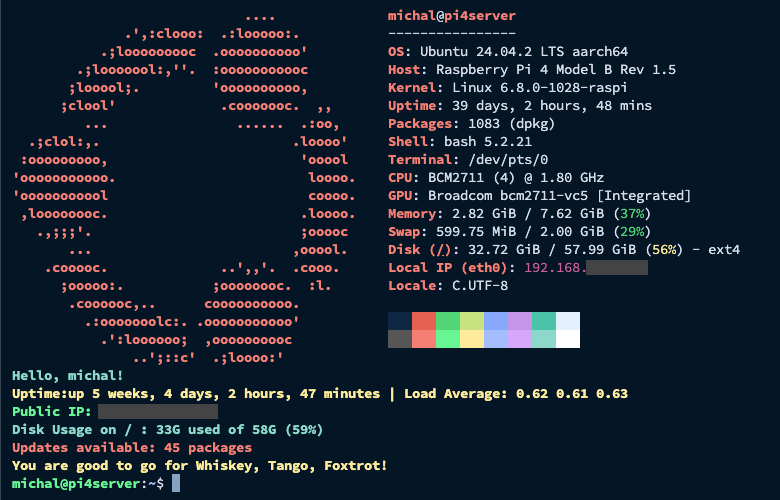
Easily add a beautiful, dynamic welcome message to your Linux or macOS shell—complete with system stats, public IP, disk usage, weather, and multi-language support.

🚀 Features
- 💬 Multi-language support (auto-detected via
LANG) - 📦 Fastfetch system overview at login
- 🌐 Weather, public IP, disk usage report
- 💾 System metrics dashboard (memory, CPU usage)
- ⚡ Performance optimized with smart caching
- 🎨 Customizable via configuration file
- 🔒 Security focused with timeouts and error handling
- 🐚 Bash & ZSH support
- 📦 Multi-distro support (Ubuntu, Debian, Fedora, Arch, openSUSE, RHEL)
- 🍓 Improved Raspberry Pi detection and throttling status
- ✅ Idempotent installer — safe to run repeatedly
- 🧪 Test mode and uninstall options
⚙️ Installation
Run this command to install:
curl -s https://raw.githubusercontent.com/MichalAFerber/welcome-message/main/install_welcome.sh | bash
✅ You can re-run this any time — it will only update the script if needed.
Installation Options
# Test mode - see what would be installed without making changes
curl -s https://raw.githubusercontent.com/MichalAFerber/welcome-message/main/install_welcome.sh | bash -s -- --test

# Skip dependency installation (if you already have curl and fastfetch)
curl -s https://raw.githubusercontent.com/MichalAFerber/welcome-message/main/install_welcome.sh | bash -s -- --no-deps

# Uninstall welcome message
curl -s https://raw.githubusercontent.com/MichalAFerber/welcome-message/main/install_welcome.sh | bash -s -- --uninstall

# Show help
curl -s https://raw.githubusercontent.com/MichalAFerber/welcome-message/main/install_welcome.sh | bash -s -- --help
🎨 Configuration
A default config file is created automatically at ~/.config/welcome.sh/config on first run. To change a setting, remove the # at the start of the line and set your value:
nano ~/.config/welcome.sh/config
Available Options
# Display toggles
SHOW_FASTFETCH=true          # Show fastfetch system info
SHOW_WEATHER=true            # Show weather from wttr.in
SHOW_PUBLIC_IP=true          # Show your public IP address
SHOW_PRIVATE_IP=false        # Show your private/local IP address
SHOW_UPTIME=true             # Show uptime and load average
SHOW_DISK_USAGE=true         # Show disk usage for all mounted volumes
SHOW_MEMORY=true             # Show memory usage
SHOW_CPU_TEMP=true           # Show CPU temperature (not available on macOS)
SHOW_TOP_CPU=true            # Show top CPU process
SHOW_ASCII_ART=false         # Show ASCII art banner
QUIET_MODE=false             # Minimal output for faster loading

# Customization
WEATHER_LOCATION=""          # Set your city (e.g., "New+York", "London")
WEATHER_FORMAT="3"           # wttr.in format (see https://wttr.in/:help)
GREETING=""                  # Custom greeting (overrides language default)
CACHE_TIMEOUT=3600           # Cache duration in seconds (default: 1 hour)
REQUEST_TIMEOUT=3            # Timeout for external API calls (seconds)
Example configuration file: config.example
Quick Customization Examples
Enable ASCII art banner:
echo "SHOW_ASCII_ART=true" >> ~/.config/welcome.sh/config
Change weather location:
echo "WEATHER_LOCATION=\"Tokyo\"" >> ~/.config/welcome.sh/config
Speed up loading (disable slow features):
cat >> ~/.config/welcome.sh/config << EOF
SHOW_WEATHER=false
SHOW_PUBLIC_IP=false
QUIET_MODE=true
EOF
Clear cache (useful after config changes):
~/welcome.sh --clear-cache
🗣️ Language Support
The installer detects your system language using LANG and fetches a matching welcome.sh.template.{lang}.
Currently available: en, es, nl, fr, de.
If no matching template is found, the script will display all available templates and automatically use English.
You can temporarily force a language without changing your system locale permanently:
LANG=fr_FR.UTF-8 LANGUAGE=fr \
bash <(curl -s https://raw.githubusercontent.com/MichalAFerber/welcome-message/main/install_welcome.sh)
🚀 Performance Optimizations
- Smart Caching: Public IP and weather data are cached for 1 hour by default
- Timeouts: External API calls timeout after 3 seconds to prevent hanging
- Quiet Mode: Disable resource-intensive features for faster loading
- Conditional Checks: System metrics only run when needed
Cache files are stored in: ~/.cache/welcome.sh/
🧪 Safe, Smart, and Idempotent
- Uses content comparison (not hashes) to determine updates
- Adds hook to
.bashrcand.zshrcif needed - Will not duplicate or overwrite if already installed
- Test mode available to preview changes
- Clean uninstall option removes all files and hooks
🐧 Distribution Support
Supported Platforms
- Linux: Ubuntu, Debian, Fedora, RHEL, CentOS, Arch Linux, Manjaro, openSUSE, SUSE Linux, Raspberry Pi OS
- macOS: Fully compatible with Bash and Zsh (Homebrew installation recommended)
Supported Package Managers (Linux)
- APT (Debian, Ubuntu, Raspberry Pi OS)
- DNF (Fedora, RHEL 8+)
- YUM (CentOS, RHEL 7)
- Pacman (Arch Linux, Manjaro)
- Zypper (openSUSE, SUSE Linux)
macOS Installation
On macOS, you’ll need Homebrew to install dependencies. If you don’t have Homebrew installed yet:
/bin/bash -c "$(curl -fsSL https://raw.githubusercontent.com/Homebrew/install/HEAD/install.sh)"
Then install the required dependencies:
brew install curl fastfetch
Finally, run the installer:
curl -s https://raw.githubusercontent.com/MichalAFerber/welcome-message/main/install_welcome.sh | bash
Note: The installer will automatically detect macOS and skip Linux-specific package managers. Just ensure curl and fastfetch are installed via Homebrew first.
Raspberry Pi
Improved detection using multiple methods:
/proc/device-tree/modelcheck/boot/config.txtpresence- Automatic
libraspberrypi-bininstallation - Throttling status monitoring
📦 Dependencies
These are installed automatically (unless --no-deps is used):
bash,curlfastfetch(via distribution package manager or PPA)libraspberrypi-bin(only on Raspberry Pi)
Ubuntu 22.04+ users benefit from a Fastfetch PPA for latest builds.
� System Metrics Dashboard
Each metric has its own toggle:
- Disk Usage (
SHOW_DISK_USAGE): Lists all mounted volumes (filters out macOS system volumes) - Memory Usage (
SHOW_MEMORY): Shows used/total memory with percentage (usesvm_stat/sysctlon macOS,freeon Linux) - Top CPU Process (
SHOW_TOP_CPU): Displays the most CPU-intensive process (hidden in quiet mode) - CPU Temperature (
SHOW_CPU_TEMP): Multi-method temperature detection (Linux only, not available on macOS)
Always shown (no toggle):
- Package Updates: Works across multiple package managers
- Reboot Status: Warning if system reboot is required
- Throttling Status: Raspberry Pi throttling detection
�📂 Directory Layout
.
├── install_welcome.sh
├── config.example
└── templates/
    ├── welcome.sh.template.en
    ├── welcome.sh.template.es
    ├── welcome.sh.template.nl
    ├── welcome.sh.template.fr
    └── welcome.sh.template.de
Want to contribute a translation? Add a new welcome.sh.template.xx file!
🧠 Advanced Usage
Upgrading
To upgrade to the latest version, simply re-run the installer:
curl -s https://raw.githubusercontent.com/MichalAFerber/welcome-message/main/install_welcome.sh | bash
This will update ~/welcome.sh to the latest version while preserving your existing configuration. The installer will also add any new config options and remove deprecated ones from ~/.config/welcome.sh/config.
Testing Configuration Changes
After editing your config file, test it immediately:
~/welcome.sh
To force fresh data (bypass cache):
~/welcome.sh --clear-cache && ~/welcome.sh
Temporary Disable
Comment out the hook in your shell rc file:
# ~/.bashrc or ~/.zshrc
# ~/welcome.sh
Custom Installation
Download and modify the template locally:
curl -O https://raw.githubusercontent.com/MichalAFerber/welcome-message/main/templates/welcome.sh.template.en
# Edit welcome.sh.template.en as desired
mv welcome.sh.template.en ~/welcome.sh
chmod +x ~/welcome.sh
Docker/VM Testing
To test in a clean shell environment, use Docker or a VM:
docker run -it ubuntu:22.04 bash -c "curl -s https://raw.githubusercontent.com/MichalAFerber/welcome-message/main/install_welcome.sh | bash && bash"
🤝 Contributing
Pull requests are welcome! Especially for:
- 🌍 Translations (
templates/welcome.sh.template.xx) - 💡 Feature ideas and enhancements
- 🐞 Bug fixes and improvements
- 📚 Documentation improvements
- 🎨 ASCII art banners and visual enhancements
Adding a New Language
- Copy an existing template:
cp templates/welcome.sh.template.en templates/welcome.sh.template.xx - Translate all user-facing strings
- Test the template:
bash templates/welcome.sh.template.xx - Submit a pull request
🆘 Troubleshooting
Welcome message doesn’t show
- Check if the hook exists:
grep welcome.sh ~/.bashrc ~/.zshrc - Test manually:
~/welcome.sh - Check for errors:
bash -x ~/welcome.sh
Slow loading
- Enable caching (default is enabled)
- Disable weather:
echo "SHOW_WEATHER=false" >> ~/.config/welcome.sh/config - Disable public IP:
echo "SHOW_PUBLIC_IP=false" >> ~/.config/welcome.sh/config - Enable quiet mode:
echo "QUIET_MODE=true" >> ~/.config/welcome.sh/config
Temperature not showing
- Install
lm-sensors:sudo apt install lm-sensors(Ubuntu/Debian) - Run sensors detection:
sudo sensors-detect
Fastfetch not found
- Manually install:
sudo apt install fastfetchor check your distro’s package manager - On older Ubuntu: The installer will try to add the PPA automatically
Apt signature verification warnings
You may see warnings like W: An error occurred during signature verification during installation on systems with third-party repositories (e.g., NodeSource for Node.js). These warnings are:
- Not caused by the welcome-message installer
- Typically from deprecated SHA1 signatures in third-party repos
- Safe to ignore — they don’t affect the welcome-message installation
- The installer handles these gracefully and will continue normally
These are system-level warnings from your package manager when updating repository metadata, not from this project.
📄 License
🙏 Credits
For more info, read the full blog guide: Custom Linux Welcome Message
Enjoy your new login experience. Whiskey, Tango, Foxtrot ready. 🫡